Your Mac, in a nutshell.
Eight small tools that live in your menu bar. See how your Mac is doing, where your day went, and get the fiddly stuff done with one shortcut.
14 days free, no account. For Apple silicon Macs with macOS 14 or later.
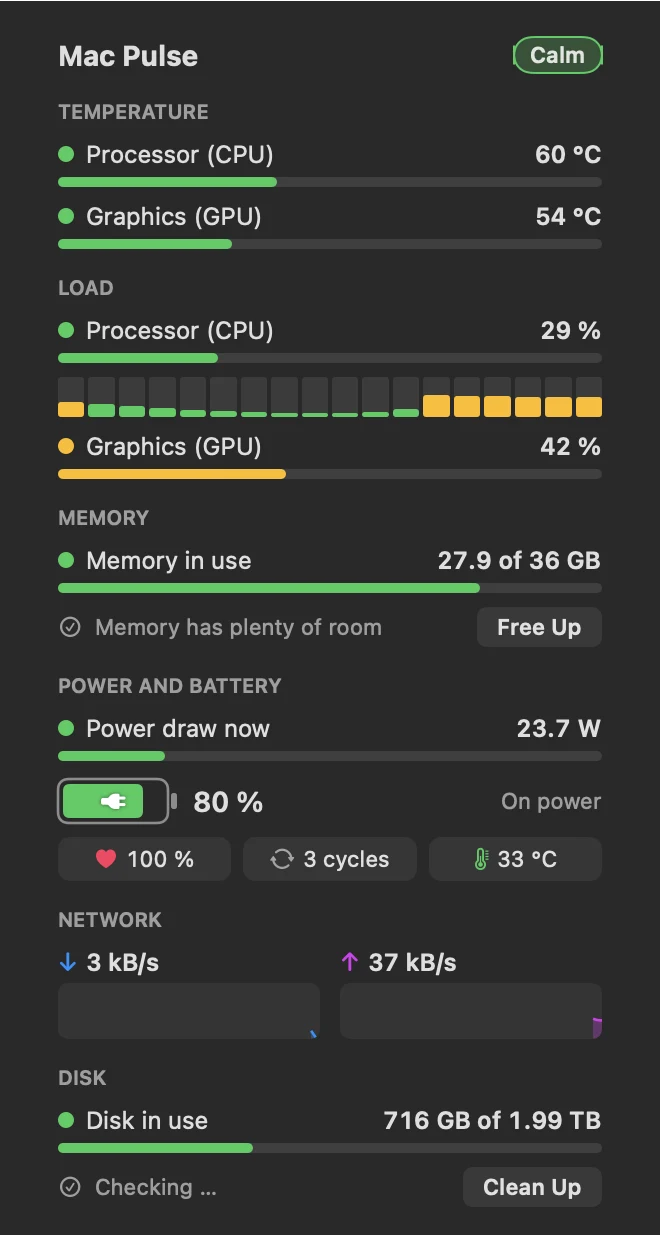
Mac Pulse
Temperature, load per core, memory, battery health, network and disk – updated every few seconds.
Click the icons in the menu bar above.
One app instead of eight menu bar icons.
Turn on the tools you need and hide the rest. Every tool can work without its own icon – shortcuts still work, and everything is one right-click away.
Know how your Mac is doing.
Mac Pulse shows the temperature and load right in the menu bar. Click it for the full picture, and fix what's slowing you down without opening another app.
- CPU and GPU temperature, load per core and power draw
- Memory pressure, the apps using the most, and a Free Up button
- Battery health, charge cycles and battery temperature
- Live network graph and disk space
- Clean Up finds caches, old logs, downloads and Xcode leftovers – everything goes to the Trash, so you can undo
- Uninstall apps together with the files they leave behind
- A notification if your Mac stays hot for more than a minute
See where the day went.
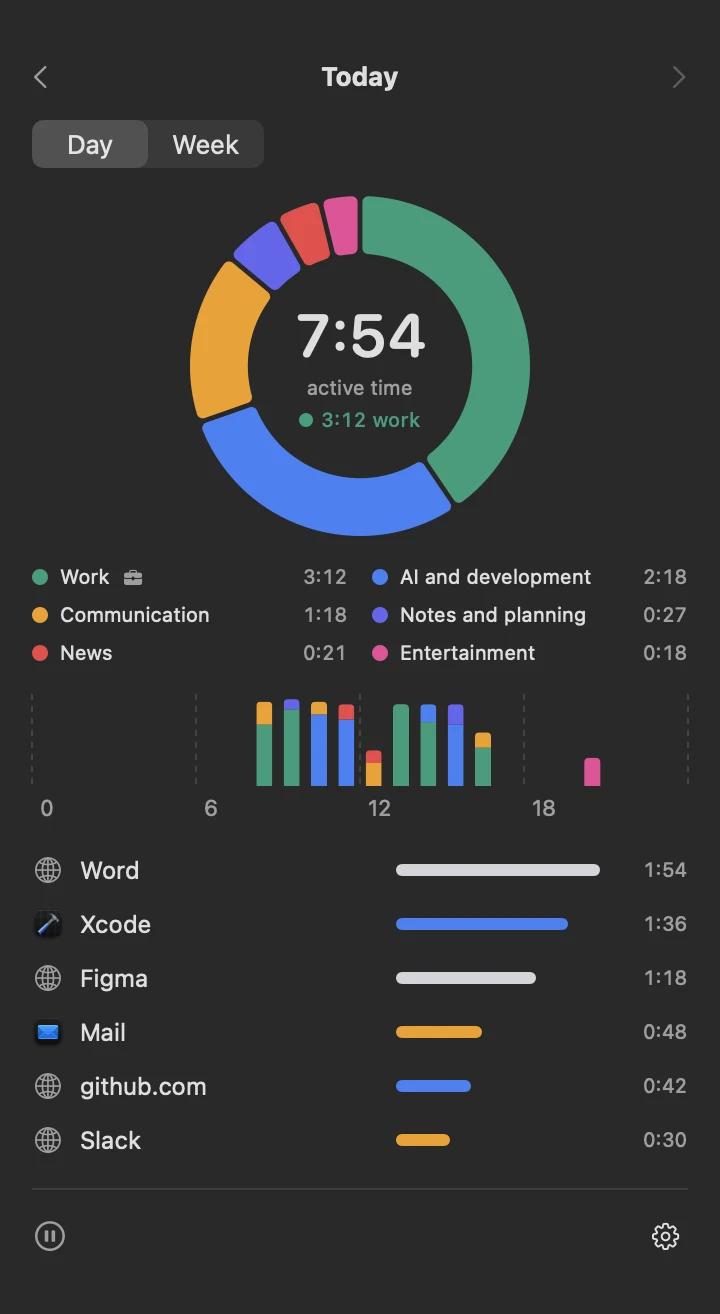
Time Tracker counts active time per app and website, sorts it into categories and tells you how much of it was work. It runs quietly, and pauses when you step away.
- Day and week view with an hour-by-hour chart
- Your own categories and projects, with colours
- Mark categories as work to see work time on its own
- Websites are counted by domain – never the full address
- Rename apps and sites, or stop counting them
- Work time or total time in the menu bar, or just an icon
Keep your Mac awake. Even with the lid closed.
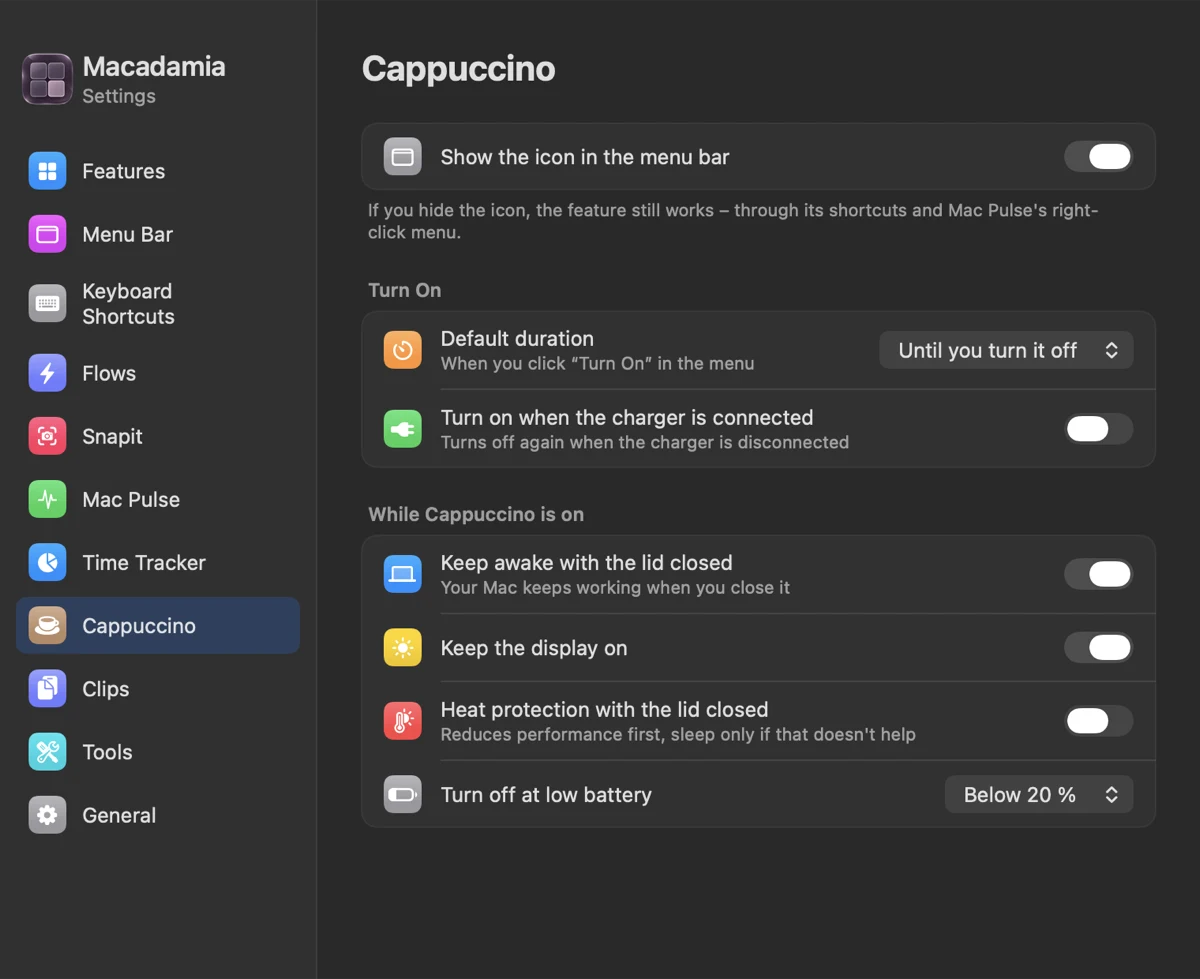
Downloading, rendering or running a long build? Cappuccino keeps your Mac working – and keeps an eye on the heat while it does.
- 15 minutes, a few hours, or until you turn it off
- Keeps working with the lid closed, through a small helper you approve once
- Heat protection: lowers performance first, and only lets the Mac sleep if that doesn't help
- Turns on when the charger is connected, if you like
- Turns off at low battery
Screenshots that stay out of your way.
Press ⌃1, drag over what you need, and a thumbnail waits in the corner. Drag it into a message, copy it, or pin it on top of everything.
- Area with thumbnail, or straight to the clipboard
- Pin an image to the screen – resize it, change the opacity
- Scrolling screenshots: select, scroll, get one long image
- Copy text from anything on screen, even images and videos
- Take a photo of a document with your iPhone and get the text on your Mac
Do it once. Then let a shortcut do it.
Flows are your own shortcuts that click, type and wait for you. Record a task once, and Macadamia turns it into steps you can fine-tune.
- Start with a key combination, a mouse button or a trackpad gesture – a tap, a firm press, or a corner
- Find buttons by name or text on screen, so flows keep working when windows move
- Only in one app, one window or one website if you want
- Secret codes are stored in the Keychain, never in the flow
- Import your shortcuts from BetterTouchTool
- Open website or appNumbers
- Press key⌘ P
- Find button by name“Export”
- Wait until it has colour2 sec
- Insert text“Weekly report”
- Press key↩
Dictate in pieces. Paste it as one.
Clips collects what your dictation app copies while it records, so a long message spoken in bits ends up as one text on your clipboard.
- Works with Superwhisper, Wispr Flow, MacWhisper, VoiceInk, Aqua Voice, Spokenly and Willow – or any app you add
- Starts by itself when the microphone is in use, or manually with ⌃⌥C
- Kept in memory only – nothing is saved to disk
Wipe the screen without typing gibberish.
Press ⌘ five times and the screen turns black, while the keyboard, clicks and trackpad are locked. Clean, then press ⌘ five times again.
- Turns itself off after a few minutes, in case you forget
- Clear all notifications with ⌘-, or open the top one with ⌘.
- Copy a link to the selected email in Mail and paste it into notes or tasks
Press ⌘ five times to exit · turns off in 1:48
Every shortcut is yours to change.
Macadamia suggests shortcuts that are free on your Mac, and warns you if one is already taken by macOS or another app.
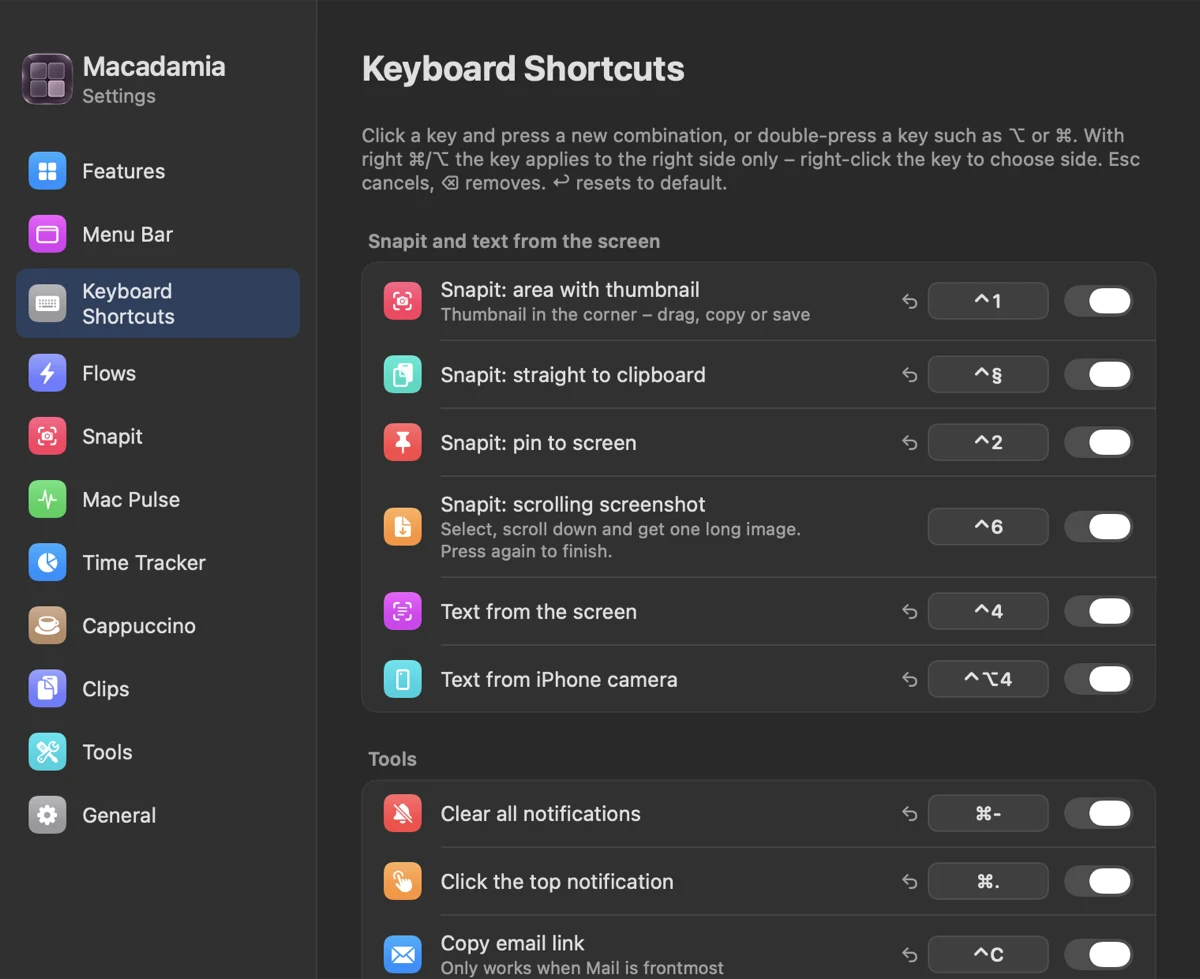
Double-press a modifier like ⌥ or ⌘ to use it on its own, and choose the left or right side.
Made for the Mac, and nothing else.
Private by design
No account and no analytics. What Macadamia records stays on your Mac – it only checks your licence now and then.
Native and light
Written in Swift for macOS. Mac Pulse only draws while its panel is open, to save battery.
Signed and notarized
Checked by Apple, so it opens like any other app. The lid-closed helper only runs the two power commands it needs.
Light and dark
Follows your Mac's appearance, in English or Norwegian.
Easy to move
Export your settings and shortcuts to a file, and import them on your next Mac.
Asks only when needed
A short welcome lets you pick your tools, and permissions are requested for the ones you turn on.
Pay once. Keep it.
- All eight tools, for one person on up to 3 Macs
- All 1.x updates included
- 14 days free, and a 14-day money-back guarantee
Our order process is conducted by our online reseller Paddle.com. Paddle.com is the Merchant of Record for all our orders. Paddle provides all customer service inquiries and handles returns.
Questions
Which Macs does it run on?
Macs with Apple silicon (M1 or newer) running macOS 14 Sonoma or later. Sensor readings like temperature can vary between models.
Will it fill up my menu bar?
No. Only Mac Pulse needs an icon. Every other tool can run without one – its shortcuts keep working, and it's all in Mac Pulse's right-click menu.
Why does it ask for Accessibility and Screen Recording?
Accessibility is needed for shortcuts in other apps, Flows, Clips and Cleaning Mode. Screen Recording is needed for screenshots and text from the screen. Macadamia only asks when you turn on a tool that needs it.
What happens when the trial ends?
Buy a licence to keep using Macadamia. Your settings and time tracking data are kept.
Can I get a refund?
Yes. Ask within 14 days of buying and you get your money back. See the Refund Policy.